How to make an explainer video from a script, a PDF or your voice
Here’s how to turn what you’ve written, or would rather say out loud, into an animated explainer: which source to start from, when to let the AI writer rewrite your words, how to direct scenes with notes in square brackets, and which style fits your subject. You’ll also see what the AI director decides and what you can still change after the first cut. To try it as you read, open Clipteach’s text to video AI.
By Arnault, co-founder · October 25, 2026 · 7 min read
You bring what you know, in whatever shape it’s in. Nothing is charged before you see the price.
Start from what you have: paste text, import a document, or upload a recording of your voice.
Choose how it’s told. With Rewrite on, the AI writer turns your material into a spoken narration of about one, two, or three to four minutes. With Rewrite off, the pro voice you pick reads your text exactly as written.
Pick a style, Doodle, 3D Body or Motion, and a shape: wide 16:9 or vertical 9:16. The price shows before you generate.
The AI director plans every scene and times it to the word. You change what you want in the studio, then export a 1080p MP4.
The text box takes anything from about 200 characters: a finished script, the bullet points you teach from, a blog post, a chapter of your course, a transcript. It doesn’t have to be written for the ear. With Rewrite on, that’s the AI writer’s job.
Say you wrote an 800-word post on compound interest for your community. Paste it, leave Rewrite on and pick Standard, about two minutes. The writer keeps your argument and trims it to what a voice can say in that time. In Motion’s light look, the director might count the balance up as the voice walks through the years, then draw the curve as it starts to bend.
Import a document: PDF, Word, PowerPoint or Google Slides
Most lessons already exist as a file. Import a PDF (up to 50 MB), a Word file (.docx), a PowerPoint (.pptx) or a plain text file, or paste the link to a Google Slides deck. The text lands in the box first, with page numbers and repeated headers left out, so you check it before anything is made.
A deck gets its own treatment: the speaker notes become the voice, and each slide becomes a [SLIDE] note that tells the director what was on it. Tick “Keep my slides’ background” and your slides’ design stays behind the video while the style animates their content on top.
A scanned PDF holds pictures of pages, not text, so it’s refused: copy the text from the original instead. Pictures inside a PDF can be ticked and added to your Library. The details are on the PDF to video page.
Upload your voice: the animation follows your recording
If you explain things better out loud than on paper, skip the writing. Upload a recording of your voice: it’s transcribed, your voice stays the narration, and every scene comes in on the word it belongs to. There is no voice to pick and nothing is rewritten.
Beside the recording, an optional Script & notes box takes your instructions for the director: what to show, what to highlight, how a name is spelled. Voice to video covers how to record for it.
Filmed yourself instead? That’s the other door: the AI video editor takes your own clips, keeps your best takes and animates on top of them.
What does the AI director decide?
Everything you would otherwise decide yourself in an animation tool. That’s the difference between an AI explainer video maker and a template with your words poured in: for each line of the narration, the director chooses what appears, where it sits, how it enters and moves, and which word it lands on.
The plan: how your explanation breaks into scenes, and what each scene shows.
The timing: the narration is made first, every word gets its time, and each entrance lands on the word it belongs to.
The layout: one idea alone on screen, two things side by side, a run of steps, a number that needs room. Chosen scene by scene, per video.
The motion: what draws itself, what counts up, what lights up, and where the camera goes next.
#02Video coming soon
The timing is the part that teaches. In Richard E. Mayer’s research on multimedia learning, people learn better when words and the matching pictures arrive together rather than one after the other: his temporal contiguity principle. A drawing that turns up three seconds after the voice has moved on makes the viewer choose between listening and looking.
No avatar stands in front of your ideas, and no stock clip fills the gaps. Two videos on two subjects come out built differently, because the director starts from what each one says. Any scene can still be changed afterwards.
Rewrite on or off, and [notes] that direct the scenes
Rewrite is one switch with two jobs. On, the AI writer turns your material into a narration written to be heard, at the length you choose. Off, the voice reads your text exactly as you wrote it: the right call for a script you’ve already taught from and tested.
With Rewrite off, you can direct. Anything in [square brackets] is a note for the director, of any length, and it’s never read aloud. It shapes the scenes for the words that follow it. Write [three boxes in a row: plan, record, publish] above a sentence, and the director builds that sentence’s scene around it. A [SCREEN] note marks where one of your screen recordings plays.
Put each [note] on its own line, just before the words it shows. A note at the very top applies to the opening.
Which style fits your subject?
Each style is a world of its own, with its own artwork, its own way of moving and its own camera. Pick the one that fits what you explain.
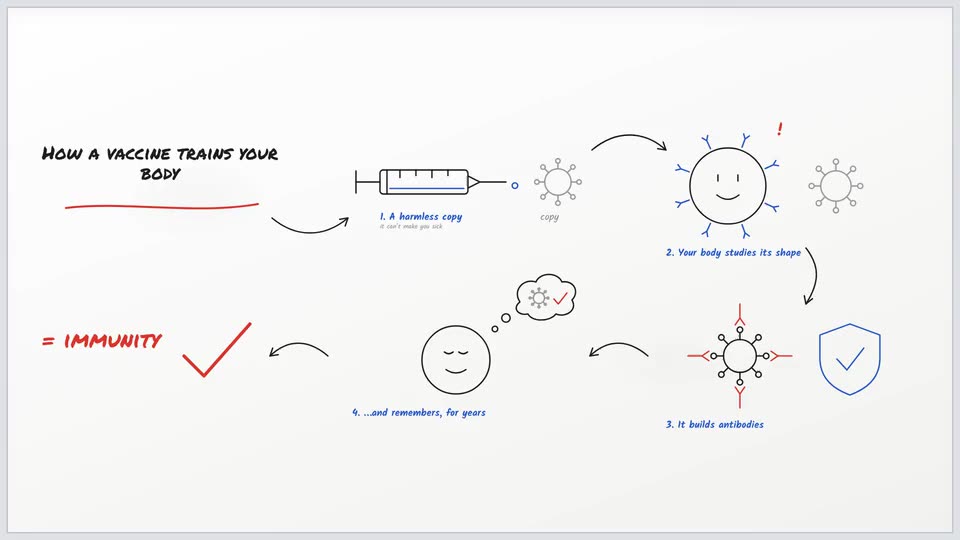
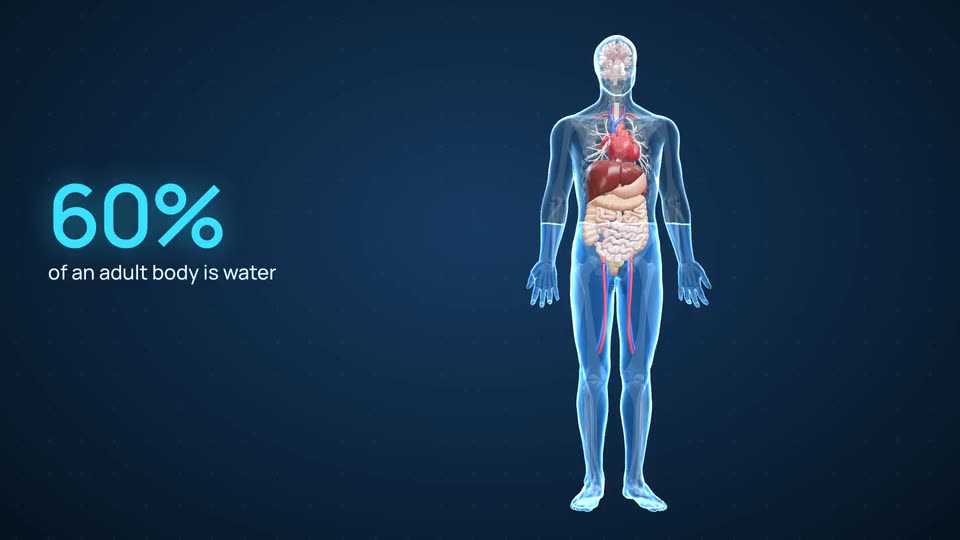
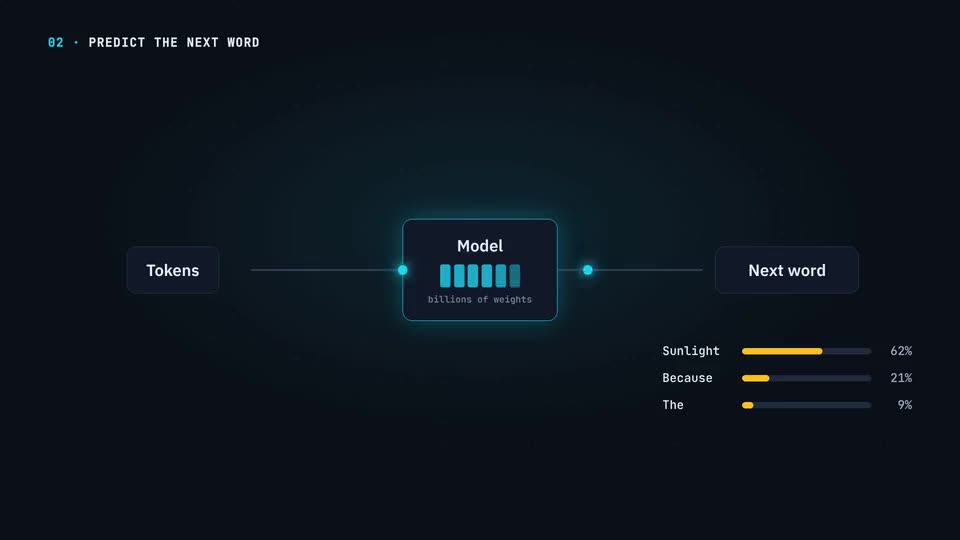
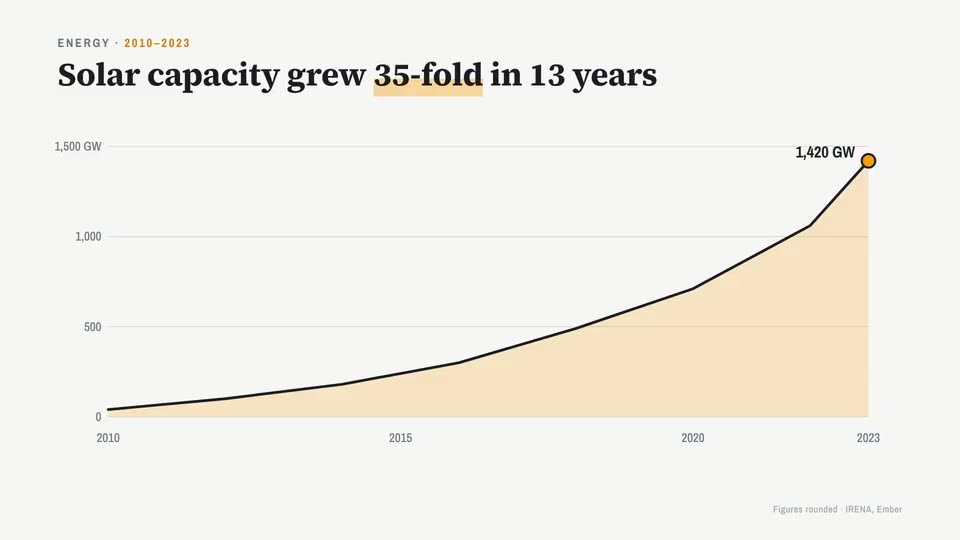
Doodle · Whiteboard animationOne big whiteboard: each idea is drawn as the voice explains it, arrows link them, the camera travels from drawing to drawing. For teaching, science, concepts and processes. See Doodle.3D Body · 3D anatomy animationA real 3D human body: organs light up and beat as the voice explains, blood travels its channels, the camera dives in. For health, nutrition, fitness and the human body. See 3D Body.Motion · Motion graphicsA dark interface world: app windows, typing, code, flow diagrams with data moving through them. For software, AI, SaaS and how systems work. See Motion.Motion, light look · Animated chartsMotion’s light look, called Charts: a clean chart page where numbers count up, lines draw themselves and bars grow. For business, numbers and reports.
After the first cut: change anything in the studio
The first version is made for you, scene by scene. From there it’s yours:
A timeline to trim, split and pace scenes. Click any scene to change its words, its drawing colours or its glow.
A video assistant: ask for a change in plain words, read its plan, approve it.
Your screen recordings drop in where a [SCREEN] note left room. On Creator and Studio, your own pictures and logo go where the script mentions them, and a brand kit sets your colours and font.
Sound effects, if you switch them on: the AI designs whooshes, hits, clicks and the sound of the place, timed to what moves. No music. Every sound sits on the timeline, to move, change or add to.
The voice volume is yours to set.
Export a 1080p MP4: wide 16:9 for a course or YouTube, or vertical 9:16 for Reels, Shorts and TikTok.
#03Video coming soon
What does text to video cost?
You start with 300 free credits when you sign up, enough for a short video. No card.
Starter is $19 a month ($190 a year) for about 3.3 to 4.7 minutes of video a month. Creator is $49 a month ($490 a year) for about 11 to 15 minutes. Studio is $149 a month ($1,490 a year) for about 41 to 58 minutes. Where you land in each range depends on the style.
Credits roll over and never expire. Before you generate, the video’s price is shown, and so is the price of any later change that costs credits.