A real Body video. Clipteach made it from the script below, pasted as is: the voice reads the lines, the [notes] direct the scenes.
The exact script that made it
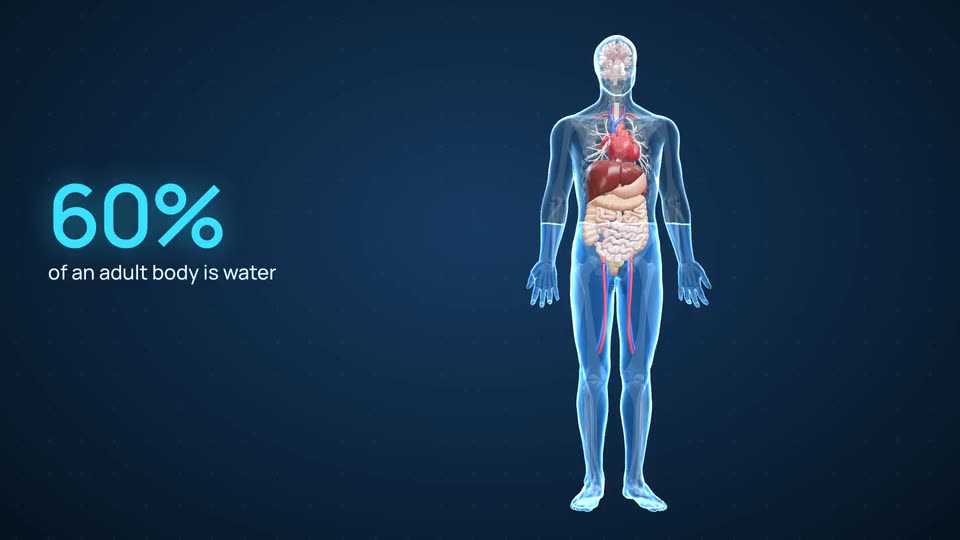
[The whole see-through 3D body, the camera turning slowly round it. A warm yellow glow spreads over the belly, with a label: "fat".]
Lose ten kilos of fat. Where does it all go?
[Yellow drops leave the belly and travel through the blood, up to the heart.]
Your body breaks it down, and your blood carries it away.
[The camera dives to the lungs. They light up, and drops stream up the windpipe and out of the mouth.]
And most of it leaves your body through your lungs.
[A big number counts up: "8.4", with the words "kg breathed out".]
Eight point four kilos, breathed out as carbon dioxide.
[The camera turns round behind the body. Light-blue drops run from the kidneys down to the bladder, which fills. A label: "water".]
The other one point six kilos turn into water, and leave the way water does.
[Back to the whole body, from the front. The lungs glow with each breath out.]
Fat doesn't just vanish. You breathe most of it out.
How PDF to video works
Three steps, from the file you already have to a video you can publish.
- Upload your PDF. Its text lands in the script box, with page numbers and repeated headers left out, so you can check it and cut what you don’t need.
- Choose how it is told. With Rewrite on, the AI writer turns the document into a spoken narration, at the length you choose. With it off, the voice reads your text word for word. Pick a pro voice, or upload your own recording.
- The AI director plans every scene and times it to the word. Then you change any scene, ask the assistant for edits, and export a 1080p MP4.
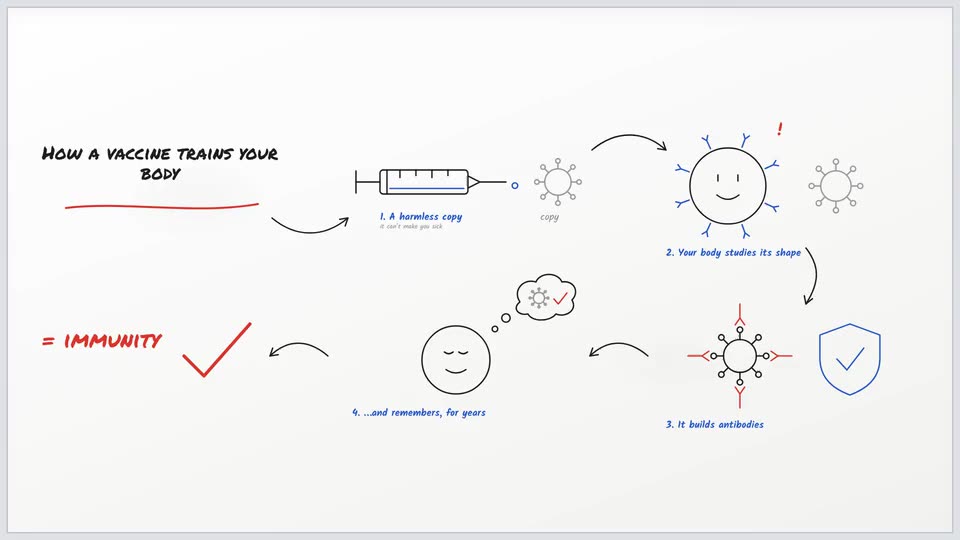
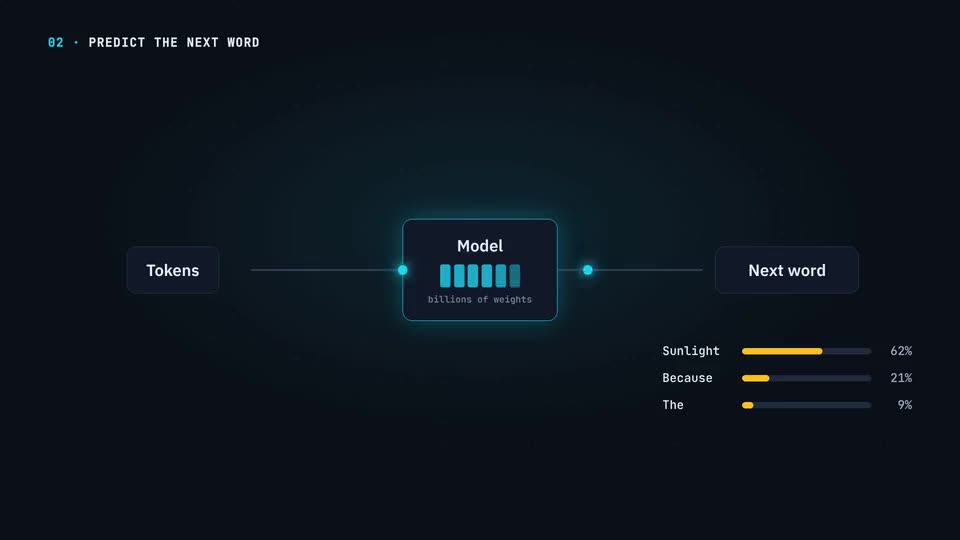
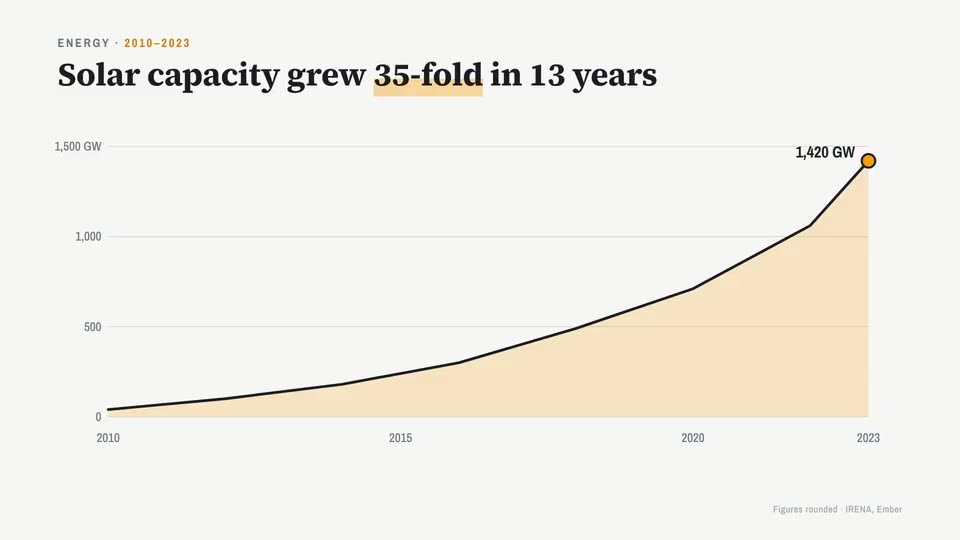
Pick the style that fits the subject
Each style has its own motion, layouts and artwork, not just its own colours.
Your voice, not an avatar
Your students know your voice. Upload your own recording and Clipteach builds the video around it: every word gets its time, and each scene comes in on the word it belongs to. Prefer not to record? Pick a pro voice.
Some PDF-to-video tools put a generated presenter in front of your pages. Clipteach animates the ideas themselves: no avatar, no stock footage, no templates.
Edit the script before anything is drawn
Nothing is drawn until you start the video. The text from your PDF sits in the script box first: fix a heading, cut a page, move a paragraph.
Notes in [brackets] direct the scenes. The voice never reads them: each one shapes the scenes for the lines that follow it, for example [the heart, its left side lit up]. A [SCREEN] note marks where one of your screen recordings plays. Notes work when the voice reads your text as written, with Rewrite off.
Your pictures and logo go where the script mentions them. So can the pictures inside your PDF: after the import, tick the ones you want and add them to your Library.
Once the video is made, click any scene in the timeline to change it, or ask the assistant. Whenever a change costs credits, the price is shown first.
What you can make from one PDF
A course lesson in 16:9 for Skool, Kajabi, Teachable, Thinkific or your own site, and a vertical 9:16 short for Reels, Shorts and TikTok. Both are 1080p MP4 files.
The import takes PDFs up to 50 MB, Word files (.docx) and plain text. A scanned PDF is pictures of pages, not text: copy the text from the original instead. Slides from PowerPoint or Google Slides work once you export them as a PDF. Pictures embedded in a PDF can be reused; charts drawn as lines can’t.
Switching from Doodly? See how Clipteach compares.
What it costs
Starter is $19 a month ($190 a year) for about 3.3 to 4.7 minutes of video. Creator is $49 a month ($490 a year) for about 11 to 15 minutes. Studio is $149 a month ($1,490 a year) for about 41 to 58 minutes.
Credits roll over and never expire. You start with 300 free credits on sign-up, enough to make a short video and see it. No card.
Pictures cost more credits than words and charts, so Sketch, the whiteboard style, runs a little shorter on the same credits: about 12 minutes a month on Creator, against 14 for Tech or Body and 15 for Data.
A long PDF shows its price before you start: as soon as the text is in, the meter under the script counts the minutes and credits. If your credits cover only part of it, you can make that part, cut at the end of a sentence.