You already explain it out loud. Keep that.
Many people explain better than they write. Their best explanations live in voice memos, in a lesson recorded for a class, in a talk given once and never reused. Typing them out flattens them: the pace goes, and so do the pauses and the emphasis.
Voice to video starts from the sound. Upload the recording and Clipteach transcribes it, gives every word its time and keeps your voice as the narration, exactly as you recorded it. Nothing is rewritten, and no other voice reads it again.
Then the AI director animates on top of it, and each scene comes in on the word it belongs to. Say “the third step” and the third step appears right then, not two seconds later. Your viewers hear the voice they already know, and the picture arrives at the moment it helps.
How voice to video works
Audio to video in five steps, starting from a recording you may already have.
- In the studio, choose My own voice and upload the recording: mp3, wav, m4a, aac, ogg, webm or flac. A voice memo from your phone works.
- Clipteach transcribes it and shows its length in seconds and its number of words.
- If you like, fill in Script & notes: what to show, what to stress, how names are spelled.
- Pick a style and a shape, wide 16:9 or vertical 9:16. The price shows before you generate.
- The AI director plans every scene on your words. You adjust it in the studio and export a 1080p MP4.
Say you record a 3-minute lesson on your phone
You teach chemistry, and one question comes back every year: why does ice float, when most solids sink in their own liquid? You open the voice memo app and explain it the way you would in class: a glass of iced water, the molecules, the hydrogen bonds, the open hexagons that make ice lighter than the water around it. Three minutes, one take.
You upload the m4a. Clipteach transcribes it and shows its length and word count. In Script & notes you add one line: “the hexagons are the key idea, give them room”. You pick Doodle and vertical 9:16, because this one is for your students’ phones, and you see the price before you generate.
The director reads your words and your note and plans the scenes on your voice. The drawings follow what you say: a glass might appear on “a glass of iced water”, the molecules link up as you get to the hydrogen bonds, and the hexagons get the room your note asked for. The camera travels from drawing to drawing as you move from idea to idea.
You watch it once, click the one scene you would have drawn differently, change its words or its colours, and export. Your students hear you, and see what you mean at the moment you say it. More ideas for the classroom are on the teachers page.
What makes a good recording for voice to video?
Your recording is the narration, so viewers hear exactly what you recorded. A few habits make the video clearer:
- A quiet room. Soft furniture helps; bare walls echo. Hold the phone close to your mouth rather than at arm’s length.
- One idea at a time. Finish an idea before you start the next: the director builds scenes from what you say, so a clear order in your voice becomes a clear order on screen.
- A short pause between ideas. It gives viewers a moment to look at what was just drawn before the next thing arrives.
- Name what you want shown. “Step two”, “the left ventricle”, “thirty percent”: words you say out loud are words the director can put on screen.
- Your best take, chosen before you upload. The recording is used as it is, so redo it on your phone if a take goes wrong. If you’d rather talk freely and let an editor keep the good parts, film yourself and use the AI video editor.
Rule of thumb: if you wouldn’t want it drawn, leave it out of the take.
Script & notes: tell the director what matters
Beside your recording sits an optional box, Script & notes. The director reads it. It never changes a word of your recording, and it never appears on screen as a note. Use it for:
- What to show, and where: “show my diagram of the water cycle when I talk about evaporation”. On Creator and Studio, the director can use your own pictures from your Library.
- What to stress. One line is enough, like “it’s more about the breathing than the posture”: the director gives it more weight without turning the whole video into it.
- How names are spelled. A transcript is heard by a machine and can mishear a name, a brand or a term. Write it the way it should appear on screen.
- The script you spoke from, if you had one. Where it and the recording differ, the recording wins.
Richard E. Mayer calls this signaling: in his research on multimedia learning, people learn better when cues point out the essential material. In a video, the cue is what grows, lights up or gets the screen to itself. Script & notes is where you say what deserves it.
Which style should your voice drive?
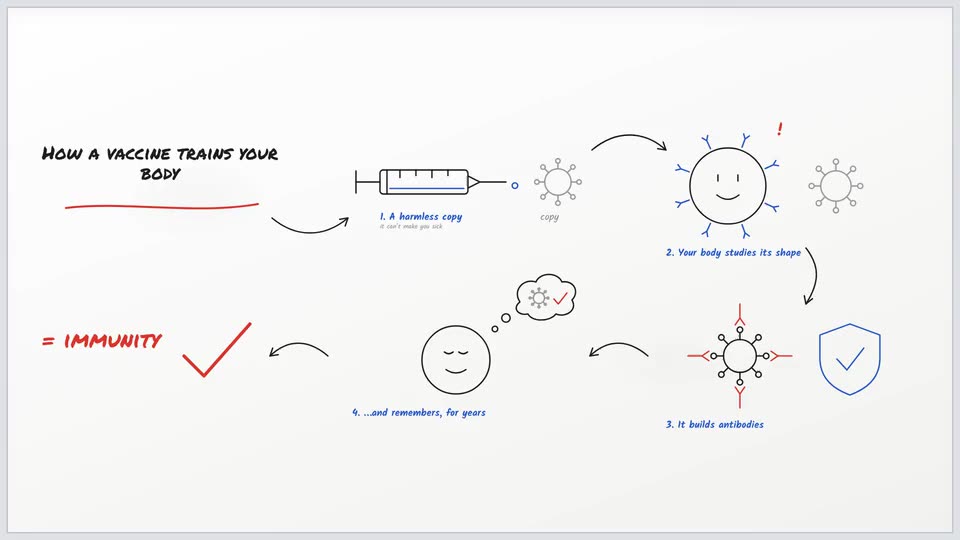
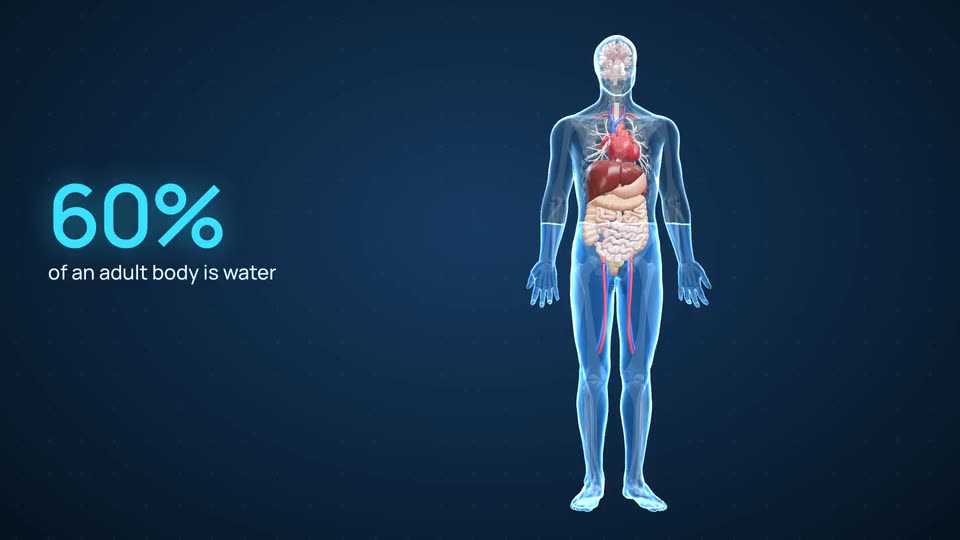
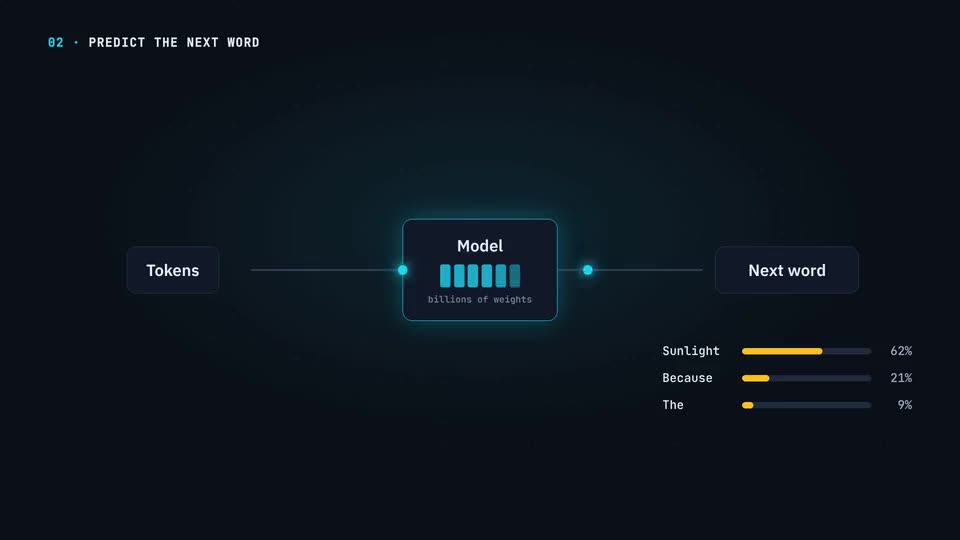
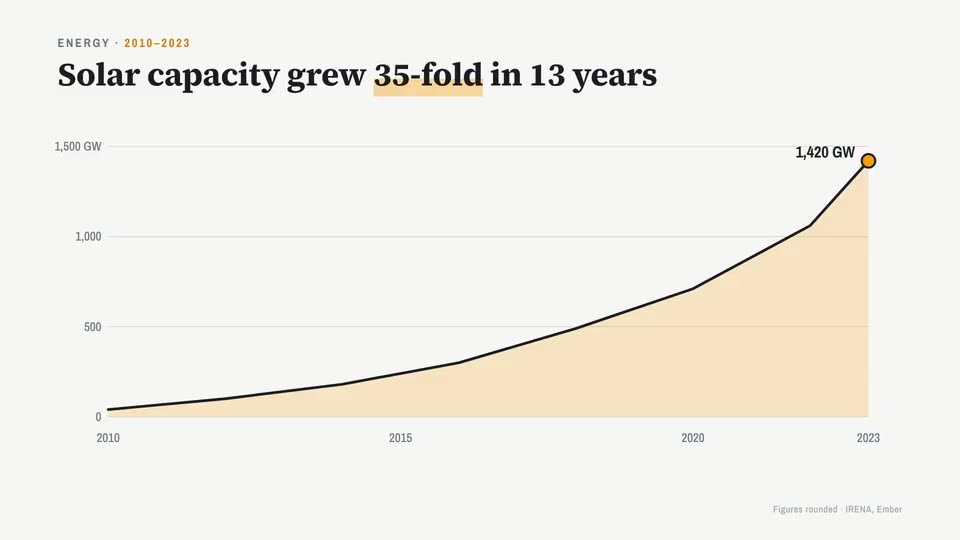
The style sets the world your voice is heard in. Your words decide what appears in it.
After it’s made: change any scene in the studio
The first version is made for you. Then:
- Click any scene on the timeline to change its words, its drawing colours or its glow; trim, split and pace scenes.
- Ask the video assistant for a change in plain words, read its plan, approve it.
- Switch on Sound effects and the AI designs whooshes, hits, clicks and the sound of the place, timed to what moves. There’s no music, so nothing competes with your voice.
- Set the voice volume. On Creator and Studio, add a brand kit: your logo, colours and font.
- Export a 1080p MP4: 16:9 for a course or YouTube, 9:16 for Reels, Shorts and TikTok.
What does voice to video cost?
A recording is priced on what you say in it and on the style, and the price shows before you generate. You start with 300 free credits on sign-up, enough for a short video, with no card.
Starter is $19 a month ($190 a year) for about 3.3 to 4.7 minutes of video a month. Creator is $49 a month ($490 a year) for about 11 to 15 minutes. Studio is $149 a month ($1,490 a year) for about 41 to 58 minutes. Credits roll over and never expire.
Rather start from writing? Text to video takes a script, your notes or a document.