Why Clipteach was built for course creators
Arnault built Clipteach for his own Skool course. The slow part was never knowing what to teach. It was turning every lesson into a video worth watching. So he built the tool that does it: his notes go in, an animated lesson comes out.
If you run a course, you know the trade-off. A recording of your slides is quick, but it is a recording of your slides. A properly edited lesson holds attention, but it can eat a whole week, and a course has dozens of lessons. So the videos stay on the to-do list, and the course ships thinner than you planned.
The edited lesson works better for a reason. Richard E. Mayer’s research on multimedia learning found that people learn more when a picture appears at the moment the words describe it, when what matters is highlighted, and when everything else is left out. Clipteach is built that way: an AI director draws each idea as the voice says it, one idea at a time.
How to turn module notes into a lesson video
Start from what you already have: notes, a doc, a slide deck, a PDF workbook.
- Paste your module notes, or import a document: a PDF, a Word file, a PowerPoint (its speaker notes become the voice) or a Google Slides link.
- Choose how it is told. With Rewrite on, the AI writer turns your notes into a spoken narration at the length you choose. With it off, the voice reads your text as written, and notes in [brackets] direct the scenes without being read aloud.
- Pick a shape, 16:9 for the classroom or 9:16 for a teaser, and a style that fits the topic.
- Pick the voice: a pro AI voice, or your own recording.
- Click Generate. The price is shown first. The AI director plans every scene and times it to the word.
- Change any scene on the timeline, or ask the video assistant in plain words. Export a 1080p MP4 and upload it to your lesson.
Each starting point in detail: text to video and PDF to video.
Your own voice, so your members hear you
People join a community or buy a course for a person. So keep your voice. Record the lesson on your phone or at your desk and upload it: Clipteach transcribes it, your voice is the narration, and every scene comes in on the word it belongs to.
Recorded from a script? Paste it in Script & notes beside the recording. The director reads it for the spelling of names and for what you want shown where.
No time to record this week? Pick a pro AI voice for this lesson and go back to your own for the next. The whole path is on voice to video.
A course intro filmed once, cut by an AI editor
Your welcome video is where your face belongs on screen. It is also the one you are tempted to re-record forever. Film it the way you naturally would: say a line again when you trip, and keep the camera rolling.
Upload the takes, choose Keep my voice and leave Keep the best takes on. An AI editor keeps your best take of each line, cuts false starts, stumbles, repeats and off-camera talk, follows your script’s order and evens out the sound between clips, like a professional editor would. In one real use, 29 minutes of raw takes of a course intro became a 3-minute intro.
Then Motion dresses it. The director can turn your video into a card that moves between beats, introduce you with a name card, light up a “what you will learn” list item by item as you reach it, and land big words beside you. More on editing your own clips: AI video editor.
Pick a style for each topic
Each style has its own stage, motion and pictures, not just its own colours. No templates: the AI director picks the layout, timing and motion of every scene, and you can change any of them afterwards.
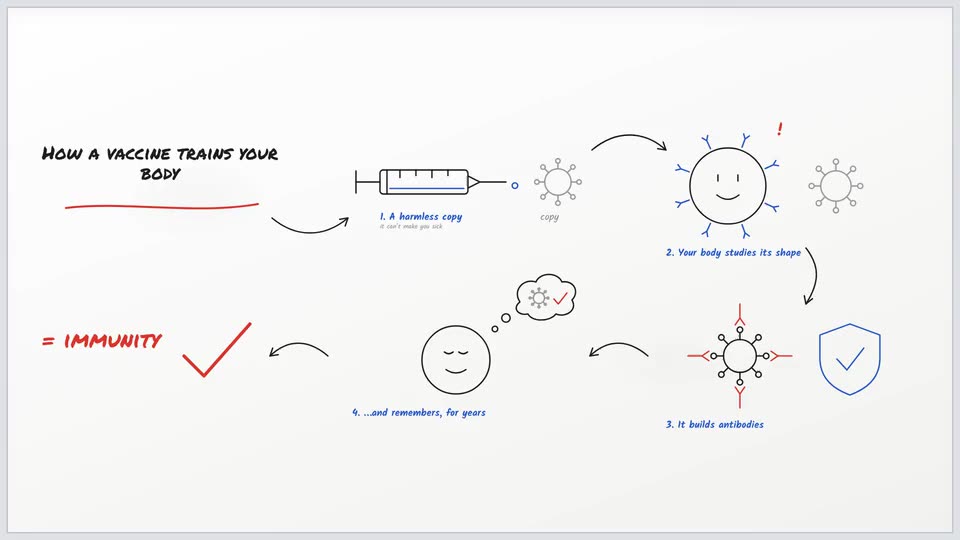
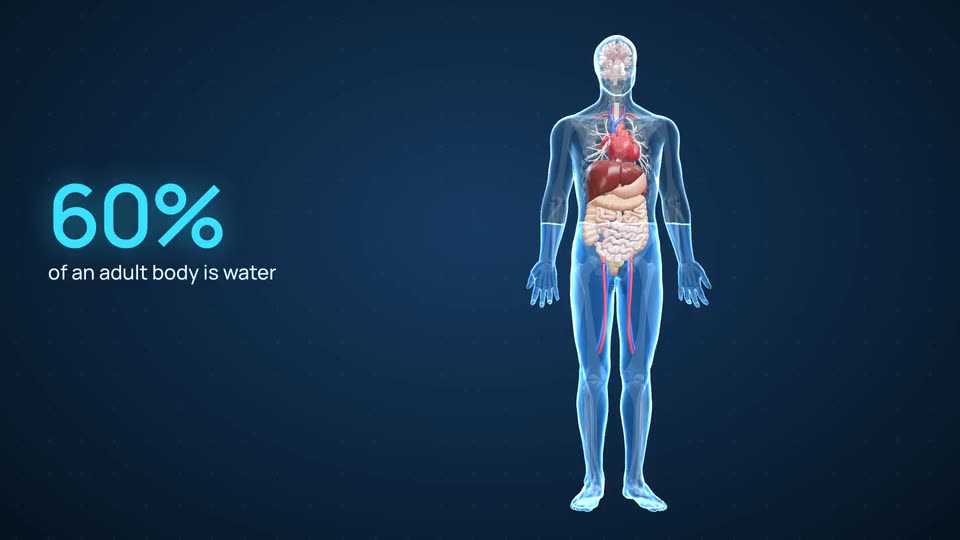
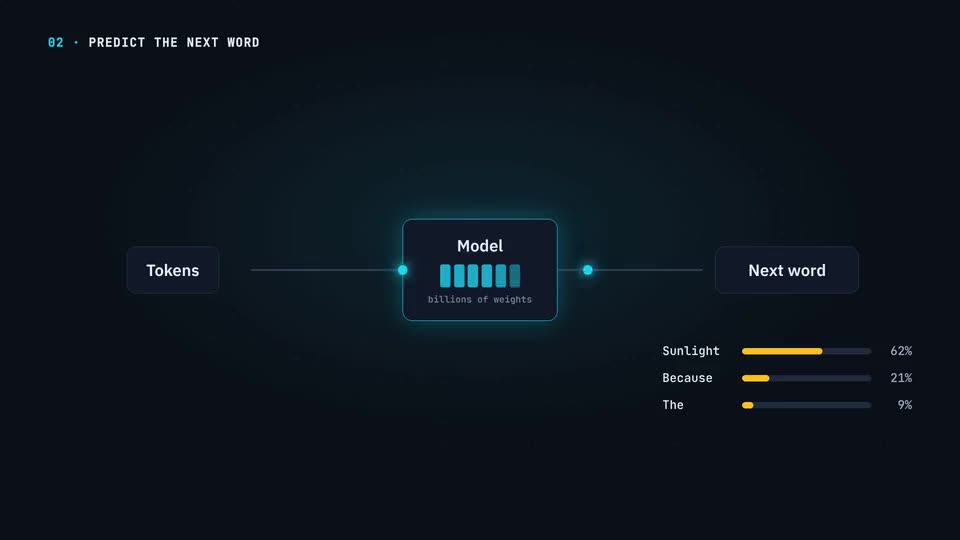
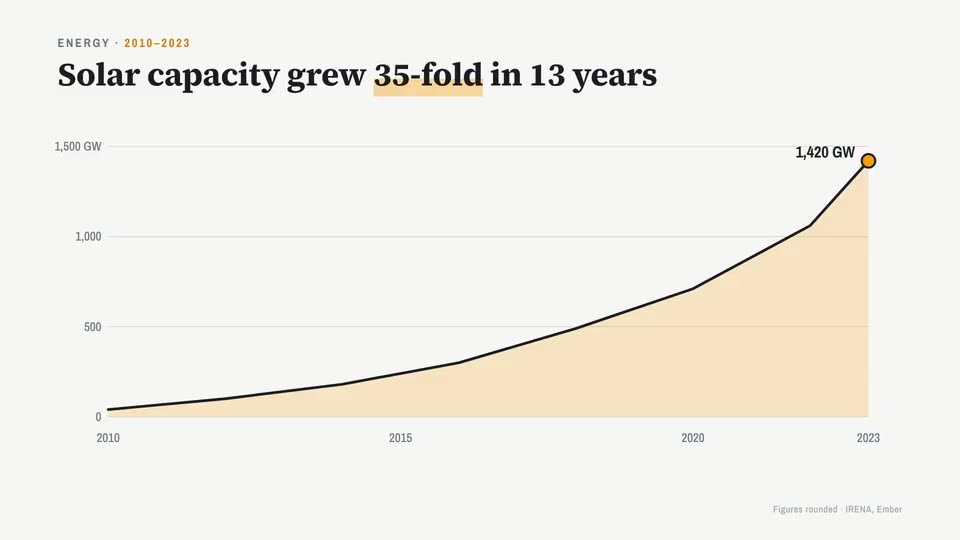
See each one at work: whiteboard animation, 3D anatomy animation and motion graphics.
A 9:16 teaser for socials, from the same lesson
The lesson lives inside your course; a teaser brings people to it. Paste the same notes again, choose vertical 9:16 and a short length, and the AI writer turns the lesson into a short narration built around one idea.
You get a 1080p MP4 for Reels, Shorts and TikTok. It is a video of its own, so it uses its own credits, priced on its length and shown before you start.
End the teaser on the question the full lesson answers. Viewers who want the answer know where to find it.
What a lesson a week costs
Plans come in credits, and credits roll over and never expire. A light month carries into the week you record a whole module.
Starter is $19 a month ($190 a year) for about 3.3 to 4.7 minutes of video. Creator is $49 a month ($490 a year) for about 11 to 15 minutes: roughly four weekly lessons of three minutes. Studio is $149 a month ($1,490 a year) for about 41 to 58 minutes. The minutes depend on the style: Doodle runs a little shorter, because pictures cost more credits than words.
Creator and Studio add a brand kit: your logo, colours and font on every lesson, so the whole course looks like one course.
An edited video, like your intro, is priced on the length of the final video, shown before you click Generate. You start with 300 free credits on sign-up, enough for a short video. No card.
Before you paste your first module, read how to write a narration that teaches.